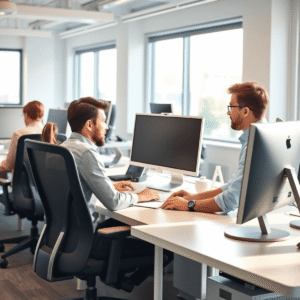
Recently one of our ergonomists conducted an audit for a client’s employee who frequently alternated tasks from the computer, to handling documents, to using the phone. The employee found she was feeling discomfort, possibly affecting job performance. Here are the findings and suggestions.

The female employee uses the computer, telephone and accesses paper documents, either in combination or alternating from one task to the next. Her workstation is L-shaped but in this particular situation, a structural beam is inset into the work surface at the end of her workstation. As well, with her current work area set up, she has to lower and slide her keyboard tray beneath the desk and then roll over to the desk surface to the right of the computer. Occasionally she may reach for the telephone to make phone calls (she does have a telephone headset for receiving calls), which is raised above the desk surface, or documents. In general, the arrangement of the work area is not set up for an individual who alternates between computer and desk work. She is not able to reposition her computer to the left work surface due to the structural beam and privacy reasons (i.e. her back would face the door); similarly, performing desk work on this surface would lead to privacy concerns in addition to the lack of desk space due to the structural beam.

Here are recommendations made by the ergonomist:

Short term, the employee should lower her telephone from the stand on the workstation panel. The stand is too high and results in reaching to make telephone calls.

Long Term Solutions:

To allow for more efficient movement and flow between desk and computer work, and to minimize the potential for awkward postures, investigate the feasibility of installing a different work surface. Two options are proposed:

1. Remove the long work surface that extends to the workstation door and re-orient/install the surface perpendicular to its current position. In this set up, the employee could position her computer either on the middle surface or the surface facing the door.

2. Remove the long work surface that currently extends to the workstation door and replace with a standard corner work surface, including a height adjustable keyboard platform. In this set up, the computer would be positioned on the corner work surface and desk work would be performed on the middle surface.

Workstation set up for multi-tasking employee 1

Option 1

Workstation set up for a multi-tasking employee 2

Option 2


 The long term solutions to this employee’s issue are not necessarily expensive options. In the end, investing in some work surface changes will help an employee work in comfort with reduced risk for injury and is suited for other employees occupying this workstation down the road.

We’ve posted several blogs on the dangers of texting as well as using the cell phone while driving. While the National Safety Council is working hard at encouraging a state wide ban on cell use while driving, there are several states in the US and Canadian municipalities that have not put this into effect. Many organizations have taken it upon themselves to ban or discourage use of a cell phone while driving among their employees. Unfortunately, it’s still an uphill battle.

For some, the cell phone has become an addiction because of the addiction that we now have to always being connected. This connectivity addiction can be a road block in the crusade against texting and talking on a cell while driving.  And if you think that using a hands free mobile is safe, think again. Despite what the cellular salesman might tell you, recent studies have shown that regardless of how a cell is used, it still distracts a driver. Events that a driver would normally be aware or cautious of go unnoticed - and reaction times to these events become impaired.

That’s where a new technology that has been developed by manufacturers such as Aegis Mobility in Canada or the American owned Accendo LC has stepped in. These companies have developed or licensed a new technology that recognizes when a cell phone is in motion in a vehicle and intercepts calls. The different technologies available utilize a cell phone’s GPS system or information received from cell towers or even employ a vehicle’s systems to intercept calls and inform the caller that the person they are trying to reach is driving. In the later, information is gathered from the vehicle itself in combination with a cell phone’s GPS system when in motion. In the case of the system called Key2SafeDriving (from the University of Utah), a cell phone is disabled as soon as the ignition key is inserted.

Now all of this might sound “Big Brother” but look at it this way - it’s a great solution for the prevention of injuries to workers or even your family.

To learn more about these cutting edge products, click on the following links:

DriveAssist

ZoomSafer

obdEdge

Happy New Year to everyone! Hope everybody had a safe and happy holiday season. Now that many of you are back at work, it’s time to start thinking about effective ways to deliver health and safety messages to your employees. In an effort to assist our clients in this process, EWI Works has developed Toolbox Minutes for both the office and industrial environment to hand out to your staff.

While ergonomic training sessions, audits and assessments may be an important aspect of your organization’s health and safety initiatives, it’s important to continue to deliver these messages to your staff through various means of communication. Our monthly Toolbox Minutes - available at no charge to our valued clients - are an excellent means of reinforcing what an employee has learned from a visit from an ergonomist or during a safety meeting. These one page reminders provide clear and concise information supported by colorful graphics to support the safety message.

Suggestions for use might be handouts at the actual safety meeting or a lunch and learn session; available for pick up in the lunch room display; as an insert in the corporate newsletter; or posted on the corporate intranet.

EWI’s current clients will receive their first sample of our Toolbox Minutes by email soon with the option to subscribe to receive others monthly. If you would like to subscribe to our Toolbox Minutes, please email us at info@ewiworks.com. Remember, this is a free service that we provide to help you with your safety initiatives for 2010.

To view other ergonomic reminder products of EWI Works, please see our product page at www.ewiworks.com!

Are you in the health care industry? Right now, our team is developing a manual handling course for workers in local hospitals. Here are some ideas from one of the modules to reduce reaching, which reduces the strain on the shoulders, upper back and neck:

Cleaning or changing beds

Let’s say you are assigned to clean beds or change sheets. You’re on your own in a room and typically, you may be inclined to reach across the bed. This can cause particular strain in the shoulders. What can you do to prevent this? Here are a few pointers:

  •  Raise or lower the work height
    • For example, when cleaning beds, ensure that you raise or lower the height of the bed to your height.
  • Work in pairs
    • By working in pairs, you may be able to cut the reach distance in half. For example, when cleaning beds, have your partner work on the opposite side of the bed.
    • If you need to work alone, move around the bed when cleaning or applying sheets to minimize reaching.

 Mopping floors

Often, we think it’s faster to stand in one place and mop a huge area in front of us, stretching out from our body as far as we can to the front and sides of our bodies to reach the floor area that needs to be cleaned. In this case, let’s say you are mopping a hospital hallway floor. You are using your arms and shoulders while keeping your feet planted in one location. This places greater demands on the upper body. What can you do differently?

  •  Position yourself so the task is directly in front of you
    • Try to use your feet as much as possible to move close to your work. For example, when wiping walls or mopping, use your feet to position your body instead of overreaching with your shoulders and arms.
    • When mopping, try to use your feet to “walk with the mop” instead of reaching to cover the floor’s surface area. Also, try to hold the mop handle close to your body and near the midline.

 Dusting/cleaning shelves or windows

 Let’s say you have to dust a window sill high above your head. What many might do is grasp the handle of the duster/broom with one arm extended well above the shoulder. This is an awkward posture that can lead to a sore neck and shoulder. But there are a few techniques to minimize the extended reach.

  •  Move closer to the task, object or equipment
    • To do this, you may need to move unnecessary equipment or furniture out of the way so you are able to stand close to the object you are reaching for.
  •  Raise yourself
    • Use a stool or a ladder to raise yourself up when working at high levels.
  •  Use equipment where possible to minimize reach
    • Lastly, utilize the equipment available to you to minimize reaching. Use ladders or stools when working at heights. Adjust the length of the handles if your mops or dusters are telescopic.

 These are just some of the pointers that help minimize reaching on the job. We have a treasure chest full of better techniques that you or your staff can learn to work in comfort and reduce the risk for injury. If you have any issues in your workplace that would be best addressed with an ergonomic training session, contact us at 780-436-0024 or by email at info@ewiworks.com. A list of some of our courses can also be found on our website at www.ewiworks.com. Stay safe!

Just as a workstation or assembly line needs to consider workers of different heights and statures, an office must also consider the individual lighting needs in an office that houses several desks or cubicles. The CSA Z-412 Guideline of Office Ergonomics indicates a target lighting level of 300 to 500lux based on the level of computer use, however variety individual needs and tasks being performed in an open office design require some flexibility.

To give a basic idea of the lighting changes, half of the overhead fixtures had the bulbs removed in a scattered pattern to attempt to distribute the light equally throughout the office while still allowing sufficient lighting at the individual workstations. The window coverings, task lighting and workstation locations did not change.

Light measures were taken on the desk surface between the keyboard and monitor (a primary work point) both before and after the overhead lighting changes with window shades fully open, shaded, or fully closed. Taking the measurements with just the overhead lighting showed a reduction to 290 to 370lux. With the blinds open, the light levels were very high, particularly at the workstations closest to the window. With the blinds shaded, the light levels were lover but not low enough to meet the recommended range.

A survey was also conducted, where the employees were asked some basic demographic information, visual information (use of glasses, light sensitivity) and their level of happiness with the lighting pre and post change. In general, the staff went from somewhat happy/happy to happy and very happy. Some of the concerns noted were 1) the brightness caused by reflection of snow on the ground, 2) brightness of the sunlight and 3) the task lighting is too focused when the overhead lights are off.

So what were the recommendations? Again, taking into consideration the light levels were different depending on the workstation location and individual needs, some of the short term suggestions were:

  • Return some of the overhead bulbs to increase light levels at certain workstations.
  • Utilize the window shades during periods of the day where it’s brightest or glare from the snow might be a concern.
  • Ensure task lighting isn’t shone directly onto monitors or this might produce unwanted glare. When not needed, task lighting should be turned off.

Long term, the consultant recommended replacing the window shades with ones with better control over the amount of lighting entering the office area, but that are not a source of glare itself.

If varying light levels are an issue in your office, give us a call: 780-436-0024.

It’s the onslaught of flu season. In the past, employees with sniffles and coughs, yet still able to do their job, felt obligated to show up for work. Even management and supervisors felt it was their duty to come into the office despite aches and pains. Got a headache? Take a pill - you can still show up for work, but your co-workers will avoid any contact with you.

Today paints a very different picture. Pandemic illnesses that are highly contagious like the Avian Flu or Swine Flu (H1N1) has had a remarkable effect on businesses. It is very common to see hand sanitizers at not only office entrances and corporate washrooms, but also restaurants and grocery stores. It is also typical to see long line-ups for flu shots and the use of surgical masks. But there is also something else for organizations to prepare for - in many working environments, employees who have been diagnosed with a contagious flu such as H1N1 are now required to stay home.

Thankfully, this doesn’t always mean that an employee can’t get their job done (ie: lost production time). Technology and the internet have saved the day. Employees who are sick but still capable of writing or reviewing reports or other computer based work can join the ranks of temporary telecommute workers. Since most employees have a business or personal laptop or regular computer, internet access and cell phones to check in, organizations can breathe a sigh of relief. Or can they?

Risk for injury when working from home is just as great as in the office. Think about it. Organizations make sure that office workstations and equipment are suited for each user to decrease risks associated with injuries such as musculoskeletal disorders. If the employee is working from home, odds are they do not have that sophisticated workstation or ergonomically correct chair. The employee might be getting his or her job done, but is at risk for injuring themselves further by sitting on the couch, stooped over a laptop that sits on the coffee table. This is just one scenario. Now, not only is this employee away from work because of the flu, they might need more time off to see their doctor or physiotherapist for a sore back or neck.

H1N1 won’t be the only flu that will require your workers to do their jobs from home if they’re sick. It’s time to consider an action plan to ensure that your employees will be working in comfort and risk free from injury. If you need some guidance on where to start or if you are considering home assessments for employees who are currently working from home due to injury or illness, contact us at 780-436-0024 or by email at info@ewiworks.com.

It’s mid October and many teens are into the thick of things with school. With homework assignments comes research on the internet, creating PowerPoint presentations, and typing up essays - basically amounting to a lot of computer work. Couple that with playing video games and kids are just as at risk of developing overuse injuries as adults.

Telltale signs of overuse or repetitive stress injury in children include experiencing pain, tingling, hand and/or wrist numbness. Signs of aggravated vision problems from prolonged concentrated focus on the monitor include rubbing the eyes or complaints of headaches. You may also see the child tilting the head or closing/blocking an eye when trying to read the monitor screen. This might indicate a vision problem so they should get an eye exam.

Applying ergonomic principles to our younger ones at home will help reduce overuse injuries. Here are some tips on what to purchase for a good home workstation and how to set it up properly so everyone can work in comfort:

1.  Seating is key. Invest some money in an adjustable seat that provides comfort and proper posture support in the spine for all family members. An adjustable seat pan allows the child to sit back in the chair to support the back rather than sit at the edge of the seat.

2.  If the child or teen’s legs are dangling, get a footrest. The legs should be supported and the knees level with the hips.

3.  A monitor riser ensures that the monitor height can be adjusted to suit tall teens or little ones. Improvise - that old phone book you’ve been meaning to recycle makes a good monitor riser.

4.  The monitor should also be placed directly in front of the hard working student so he or she does not have to turn their head or twist the body to view the screen.

5.  Get a desk with enough room to place mouse and keyboard together at the same level as well as have writing tools and reference books close at hand.

6.  When keyboarding, the arms should be close to the body and the elbows bent at a 90 degree angle. It’s tempting to hang on to the mouse when reading documents or websites for information. Encourage your child/teenager to keep their hands in their laps when not needing to use the mouse.

7.  The desk should also have enough depth and width to hold the document holder. A document holder placed directly in between the monitor and keyboard is the best choice, followed by one that sits at eye level and as close to the monitor as possible.

8.  Make sure there is room for the legs under the work surface. Get rid of clutter.

9.  Set up Outlook to remind your kids to take a break - preferably an activity break to allow muscles to stretch and move.

10.  Finally, related to activity breaks is fitness. Physical activity not only assists in maintaining a good seating posture, it’s a good mental break. Set a good example - go for walks, take some time out for play, go to the museum. Remember to get them to learn that getting away from the computer work and games for just a little while is a good thing.

Linda recently attended a full day course offered by the Canadian Association of Occupational Therapists and co-sponsored by the Saskatoon Health Region. The course, “Enabling Occupation Through Universal Design and Home Modification”, was presented by occupational therapist, Kathy Pringle. It covered current findings, funding options and resources for carrying out home assessments and developing renovations or new construction plans to consider in an accessible home environment.

Linda, who always believes in keeping abreast of changes and improvements in ergonomics for our clients, took the course due to recent enquiries we’ve had regarding the home environment. The course illustrated that universal design applied to home environments can be applied to anything involving any type of physical impairment, not just a major physical impairment.

The insights gained into this informative course will be incorporated into the many services that EWI Works offers for our clients. If you would like more information about our home assessment services, please contact us at 780-436-0024 or by email at info@ewiworks.com. To view our products and services or to subsrcibe to our quarterly online newsletter, go to our website at www.ewiworks.com.


In the first part of this two part series, I discussed an assessment that was conducted on a laboratory worker at a microscope bench. The issue is that although the assessment was to be conducted for one individual, there are other individuals working at this same workstation during different shifts. Therefore, solutions needed to consider the possibility of other individuals of varying sizes working at the same station. There are a number of individual solutions, that when combined, may result in a larger overall impact.

  • Provide chairs with a greater height range, along with other adjustable features such as a sliding seat pan to accommodate varying upper leg length. When the height difference between the elbow position and the microscope control position can be minimized, the employee will achieve a better fit with the workstation.
  • If needing to sit higher, employees will require the use of a foot stool to support the legs and feet. Although there are a variety of footstools available during the evening shift, there may be limited availability or options on the day shift.
  • Better positioning when using the computer may require examining several options:
    • Investigate the feasibility of alternative software or input controls that would minimize the need to perform traditional typing and mousing. Examine software or hardware options that would minimize the need to use two hands to type (thus reducing the need to completely turn the body) as well as improving efficiency (i.e. cut down on keystokes). Alternative software may include voice recognition, however it is strongly recommended that this solution undergoes a trial period to evaluate the effectiveness as well as potential concerns (e.g. impact of environmental noise, impact to individuals who use vocal chords for greater duration).
    • The space on the work surface is limited in part by the presence of shelving along the middle of the microscope bench. This limits where the PCs are positioned, which in turn limits where the monitor and keyboard/mouse can be positioned. Overall, there is limited flexibility in which to individually set up the workstation. Solutions may include examining alternative shelving options or design (e.g. one vertical shelf at the end of the bench, narrower shelves), alternative PC locations (e.g. beneath the work surface), the use of monitor arms, and/or potential millwork changes to the work benches (e.g. increased desk depth). In addition, replacement of the work benches is an option (e.g. height adjustable work benches), although potentially a more costly alternative.
  • Due to the potential complexity of these changes, it was recommended that the organization consider a design review of the bench that could lead to the development of a prototype workstation. Long term, this may have impact to other departments as well where microscope work is also performed.

The laboratory bench is one scenario where many individuals might share one workstation. EWI Works has also encountered this situation in factories or food processing plants. If this sounds like your organization, contact us to get some ergonomic advice on a multi-user workstation.

Often, workers in a laboratory setting share a workstation, particularly when working different shifts. When requested to conduct an assessment of a workstation for an individual, an ergonomist also has to keep in mind that recommendations must consider other individuals of varying size and stature who will be conducting the same tasks at that workstation. In the following case, an assessment was conducted on a lab technologist at a microscope bench.

The assessment included evaluation of physical work tasks and work station layout as they related to the worker’s size, stature and physical restrictions. The ergonomic assessment included observation, interview, task analysis and physical measurement of the work place to determine the level of risk associated with performing microscope duties. The tasks involved with these duties include examining a specimen, sometimes recording it on paper next to the microscope and then entering the data on the computer later or pausing to enter the data on the computer in the middle of viewing the specimen. A tray of specimens usually takes 30 minutes to an hour to examine - 2 to 5 minutes each.

It was concluded that risks for the microscope bench, existed for the hand/wrists/arms, back/torso and shoulder/neck. A moderate risk exists for the legs/feet and head/eyes and recommendations were provided. 

However, since this work bench is shared by several employees performing different duties on day and evening shifts, it is difficult to recommend design changes without knowing the full extent of their impact on other employees. The findings of the assessment were consistent with other assessments with regards 1) to the working height requirement of the microscope and the height limitation of the regular chairs, 2) the use of the computer intermittently with keyboard/mouse use, 3) the presence of the metal trim beneath the work surface that contacts the thighs and limits the sitting height range of the user relative to the microscope.

Tomorrow, find out some solutions to this common problem in many workplaces.